For a long time, mobile development followed a strict rule: if a user wanted to get something done in your app, they had to open it, look at a specific screen, and tap a button.
Today, that paradigm is officially dead !
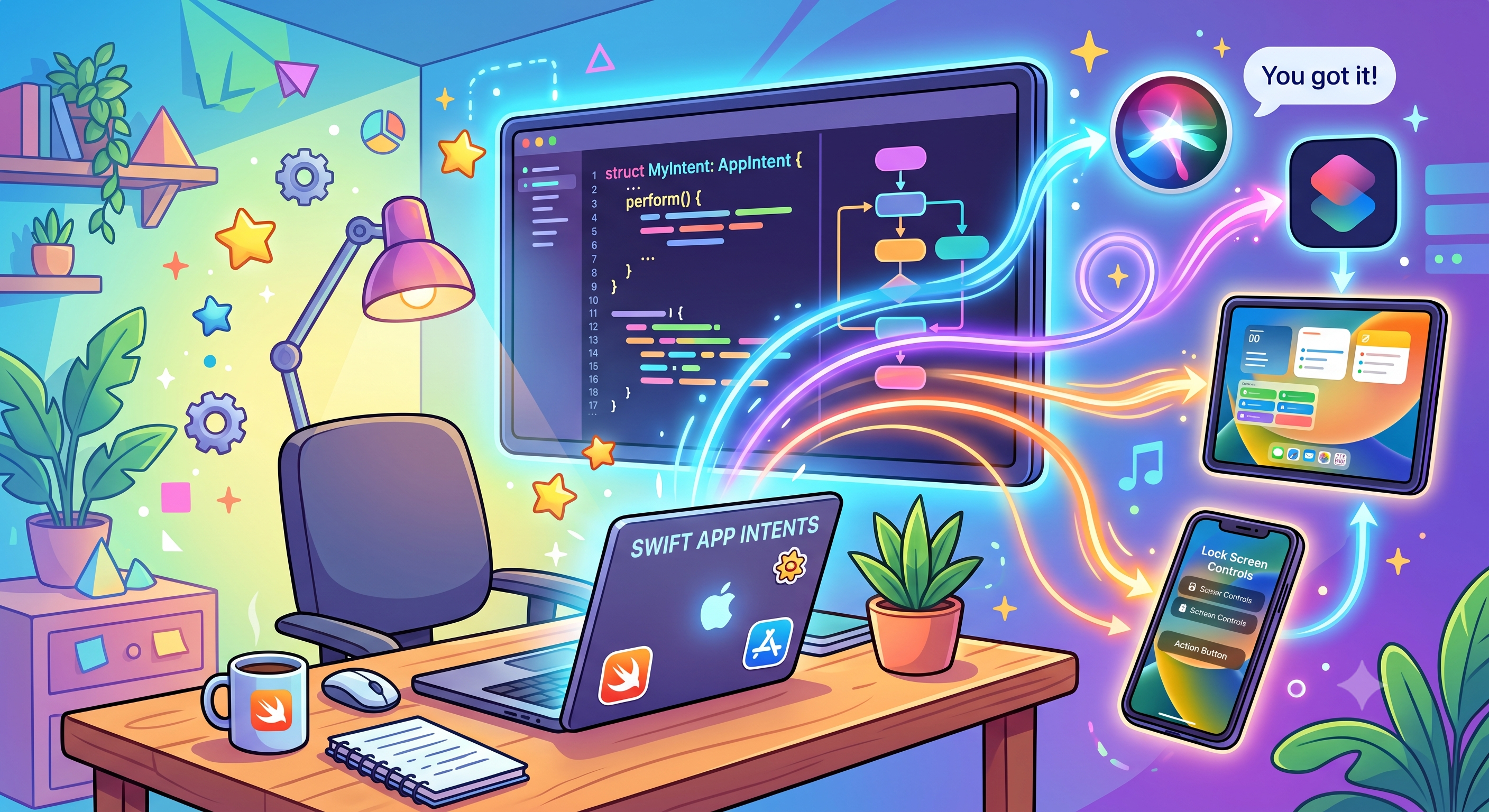
With the deep integration of Apple Intelligence and system-wide AI tools across Apple platforms, apps are no longer isolated destinations. They are ecosystems of capabilities. The bridge that connects your app’s core logic to the rest of the OS—powering Siri, interactive widgets, Control Centre toggles, and the Shortcuts app—is called App Intents.
The Big Three: Intents, Entities, and Queries
Before diving into the code, it helps to understand the vocabulary of the App Intents framework. You can break it down into three simple parts:
- AppIntents (The Verbs): These represent the actions your app can perform (e.g., “Log a cup of tea”, “Create a Task”, or “Check Flight Status”).
- AppEntities (The Nouns): These are the core data objects your intents interact with (e.g., a specific coffee type, a single task, or a flight entry).
- EntityQueries (The Search Engine): This is the code that allows the system to look up your entities. If a user tells Siri to “Delete my grocery task,” the system uses an Entity Query to find the right item in your database.
Building Your First App Intent
Lets use a simple example of a user who like me is a tea lover 🙂 , they have an app that is used to log when a cup of tea is consumed, the App Intent allows this action to take place without opening the app…
The App Intent
This struct defines the action itself. When triggered, the system runs the perform() method in the background.
import AppIntentsimport Foundationstruct LogTeaIntent: AppIntent { // The title displayed in the Shortcuts app static var title: LocalizedStringResource = "Log a Cup of Tea" // A brief description of what the shortcut does static var description = IntentDescription("Quickly logs a cup of tea to keep track of your hydration.") // Dynamic parameter allowing the user to customize the tea type @Parameter(title: "Tea Type", default: "Earl Grey") var teaType: String // The logic that executes in the background func perform() async throws -> some IntentResult & ReturnsValue<String> & ProvidesDialog { // 1. Simulate saving the data (e.g., to UserDefaults or a Shared App Group database) let timestamp = Date() saveTeaToDatabase(type: teaType, time: timestamp) // 2. Return the result. The dialog is what Siri will say aloud // or what will pop up in a subtle banner at the top of the screen. return .result( value: teaType, dialog: "Got it! Logged a cup of \(teaType)." ) } // Mock helper function for data persistence private func saveTeaToDatabase(type: String, time: Date) { // In a real app, you would write this to CoreData, SwiftData, or UserDefaults print("Successfully saved \(type) at \(time) to background storage.") }}
Exposing it to Siri (App Shortcuts Provider)
To make sure the user doesn’t have to manually build a shortcut in the Shortcuts app, you use an AppShortcutsProvider. This automatically injects the phrase into Siri the moment the app is installed.
import AppIntentsstruct TeaAppShortcuts: AppShortcutsProvider { static var appShortcuts: [AppShortcut] { AppShortcut( intent: LogTeaIntent(), phrases: [ "Log a cup of tea in \(.applicationName)", "I just drank a cup of tea" ], shortTitle: "Log Tea", systemImageName: "cup.and.saucer.fill" ) }}
How this works in the background:
- Zero UI overhead: When a user says “Hey Siri, I just drank a cup of tea,” iOS wakes up your app’s extension strictly to run the
perform()method.- Shared Storage: Because the main app isn’t open, your helper function (
saveTeaToDatabase) should ideally write to an App Group (UserDefaults(suiteName:)or Shared SwiftData container) so the data is instantly waiting for the user next time they actually open the app.
Best Practices for “Intent-Driven” Development
As you start expanding your app’s capabilities into the system ecosystem, keep these structural tips in mind:
- Design for the Background: Always try to make your
perform()methods run entirely in the background. Only force the app to open in the foreground if the user absolutely needs to input complex data or interact with a heavy UI workflow. - Leverage System Schemas: If you are building an app in a common category (like Photos, Mail, Fitness, or To-Dos), check Apple’s pre-built system schemas. Binding your intents to these templates helps Siri understand your app’s purpose instantly without requiring custom phrase tuning.
- Keep Your Data Layer Modular: Because intents run independently of your main app views, extract your core database logic (like Core Data, SwiftData, or basic file writes) into a shared framework or singleton that both your main app target and your intent targets can easily access.
Final Thoughts
Building with App Intents shifts your perspective from designing closed apps to designing open ecosystems. With minimal code boilerplate, your features are automatically handed to Siri, Control Centre, physical device inputs like the Action Button, and interactive widgets.
Start small. Pick the single most repetitive action your users perform in your app, convert it into an AppIntent, and watch your software become a seamless part of the entire operating system.